
Glam
A Premiere Pro plugin that smooths skin, reshapes the face and features, and lengthens legs with simple sliders. No round trip to a phone app: see the result live as you play, and own it forever with a one-time purchase.
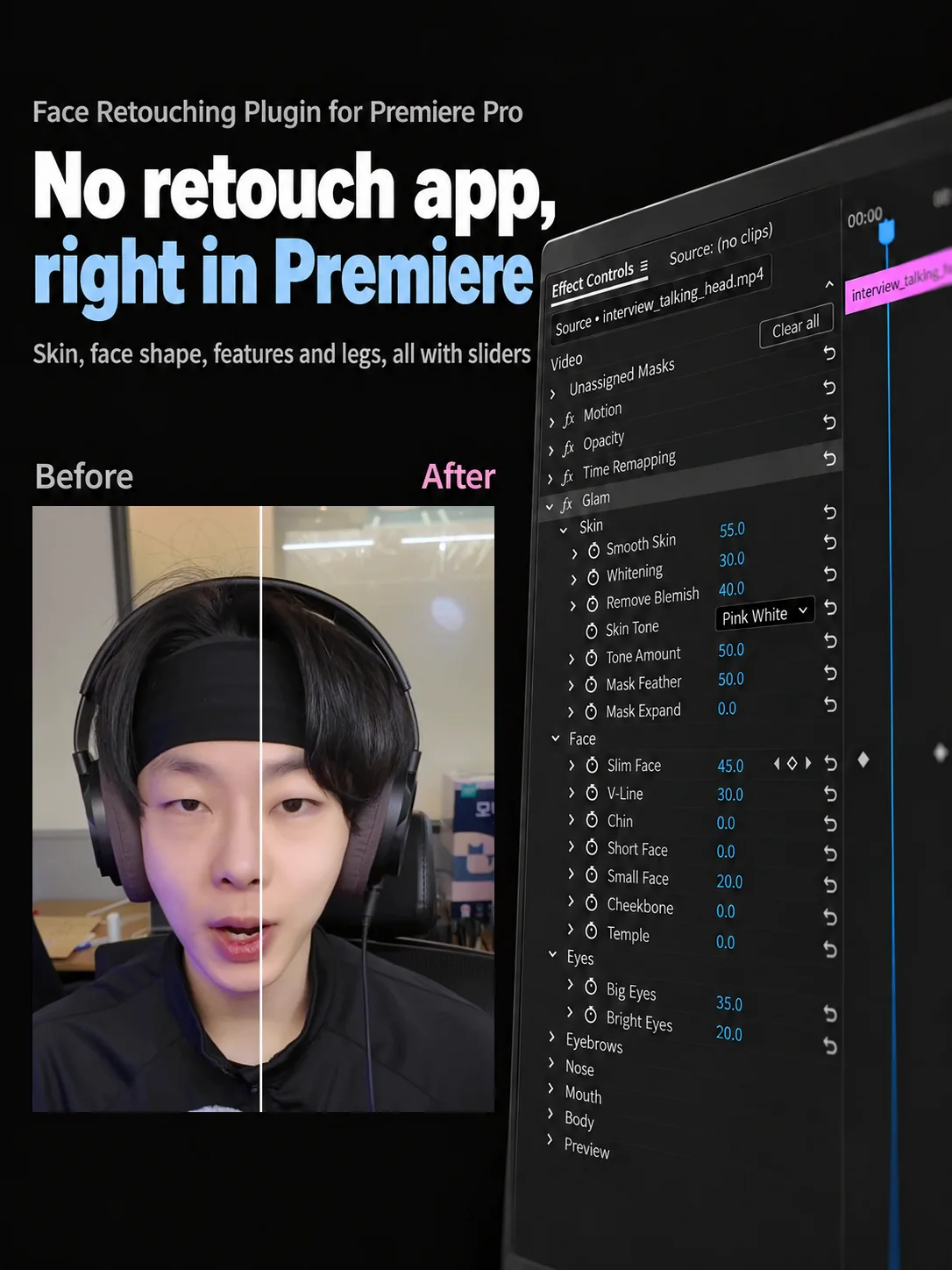
Glam is a face retouching plugin that works right inside Premiere Pro.
Drag Glam from the Effects panel onto a clip and
- retouch sliders appear in Effect Controls
- smooth skin, brighten it, remove blemishes and adjust skin tone
- reshape the face and features with Slim Face, V-Line, Big Eyes, Nose Width, Mouth Corners and more
- add lip color, and adjust paired features separately on the left and right
- lengthen legs in full-body shots
- the retouch follows the face as it moves, and you see it live during playback
No more exporting clips to a phone retouching app and bringing them back. It works on Windows and Mac (Apple Silicon M1 or later), and it's a perpetual license you buy once.
The video below is a real Premiere Pro screen, with slider values going up during playback.
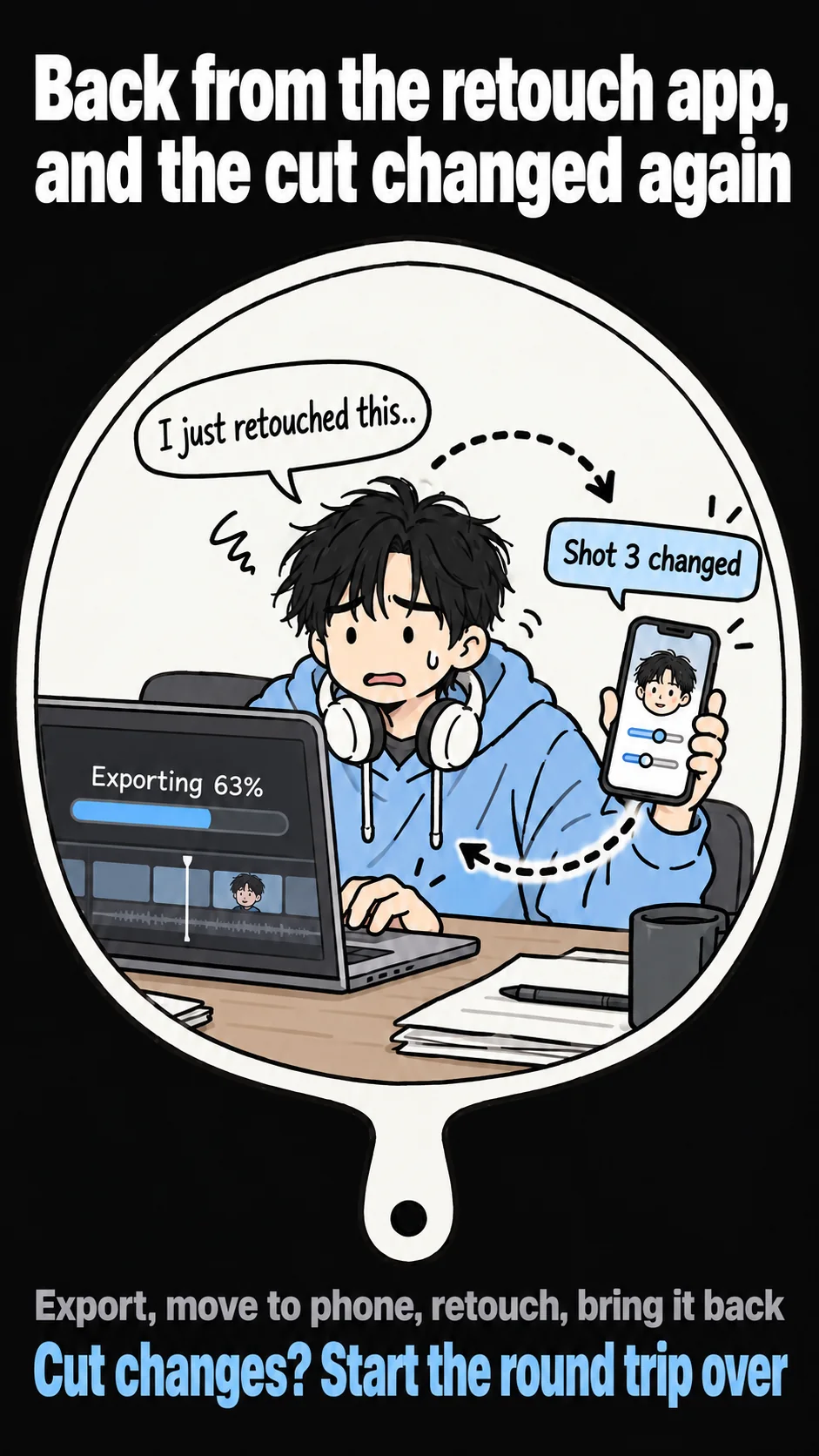
By the time the clip comes back from the retouch app, the cut has changed
Premiere Pro has no built-in face retouching. So retouching a single face shot usually goes like this:
- Export the clip
- Move it to your phone and retouch it in an app
- Export again, re-import into Premiere and line it back up
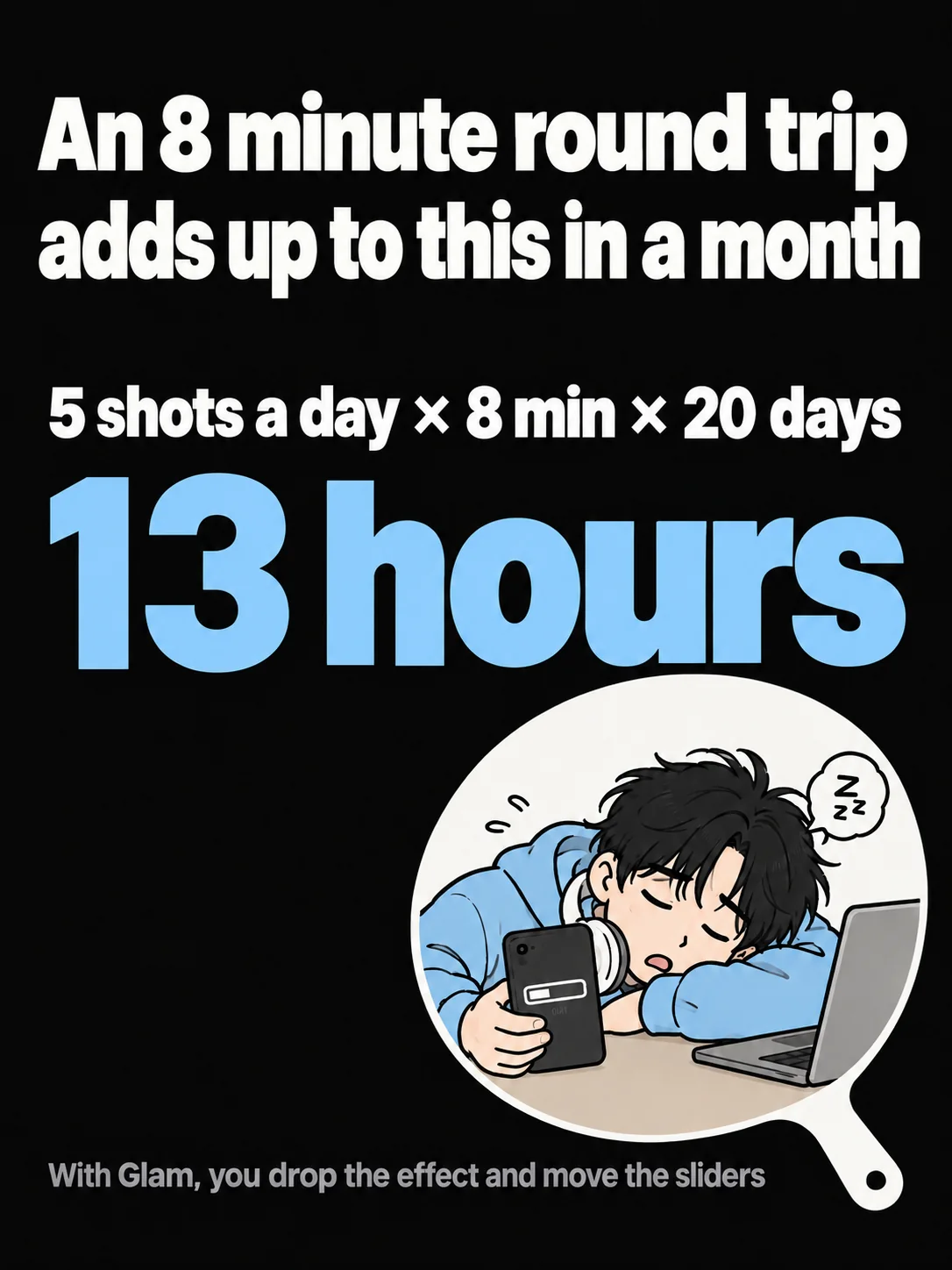
That's about 8 minutes per shot, and every re-encode costs a little quality. If the edit changes and the shot length moves, the whole round trip starts over.
Glam turns all of that into one effect. Drop it on the clip and move the sliders. The retouch stays on the clip even when you recut.
This is the actual workflow
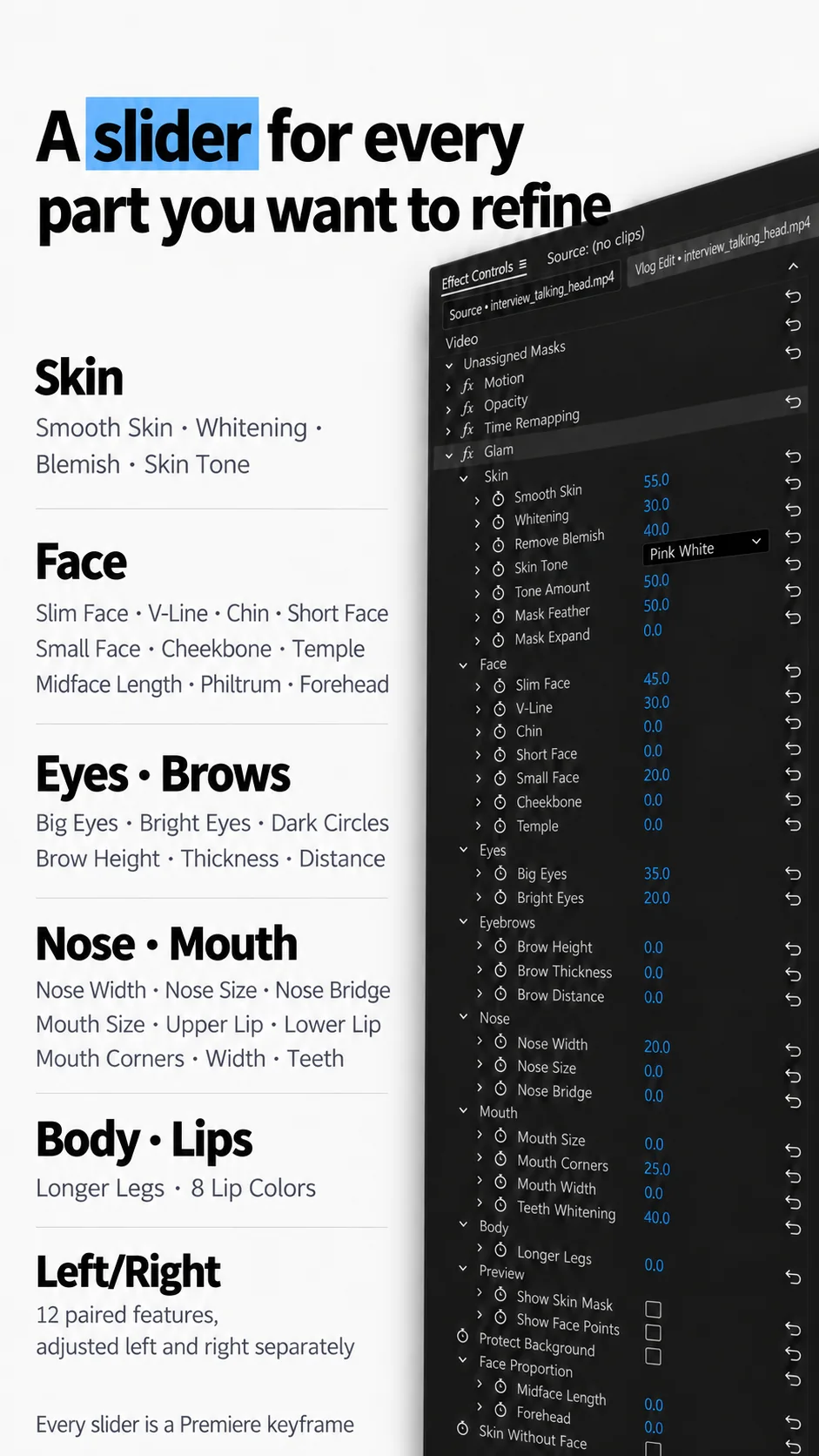
Type Glam into the Effects panel search and you'll find it under Video Effects > Memory Editor (the video starts from the drag and drop). Once it's applied, Effect Controls shows the Skin, Face, Eyes, Eyebrows, Nose, Mouth, Body and Preview groups, followed by Face Proportion, the Left/Right groups and Lip Color, and the face in the Program Monitor changes the moment you drag or type a value.
In the video we adjust Skin (Smooth Skin, Whitening, Skin Tone), then Face (Slim Face, V-Line), then Eyes (Big Eyes), and press play. At the end the effect is switched off and on to compare before and after.
Glam is made for
- YouTube editors who need natural retouching on interviews, vlogs and talk shows
- Editors who want to finish skin and face retouching for vertical Shorts, Reels and TikToks inside Premiere
- Anyone who has been moving footage to a phone app just to retouch a face
- People who found skin-only plugins too limited for face shape, eyes or legs
- Freelance editors whose clients keep asking to "slim the face just a little"
- Fashion and dance editors who want slightly longer legs in full-body shots
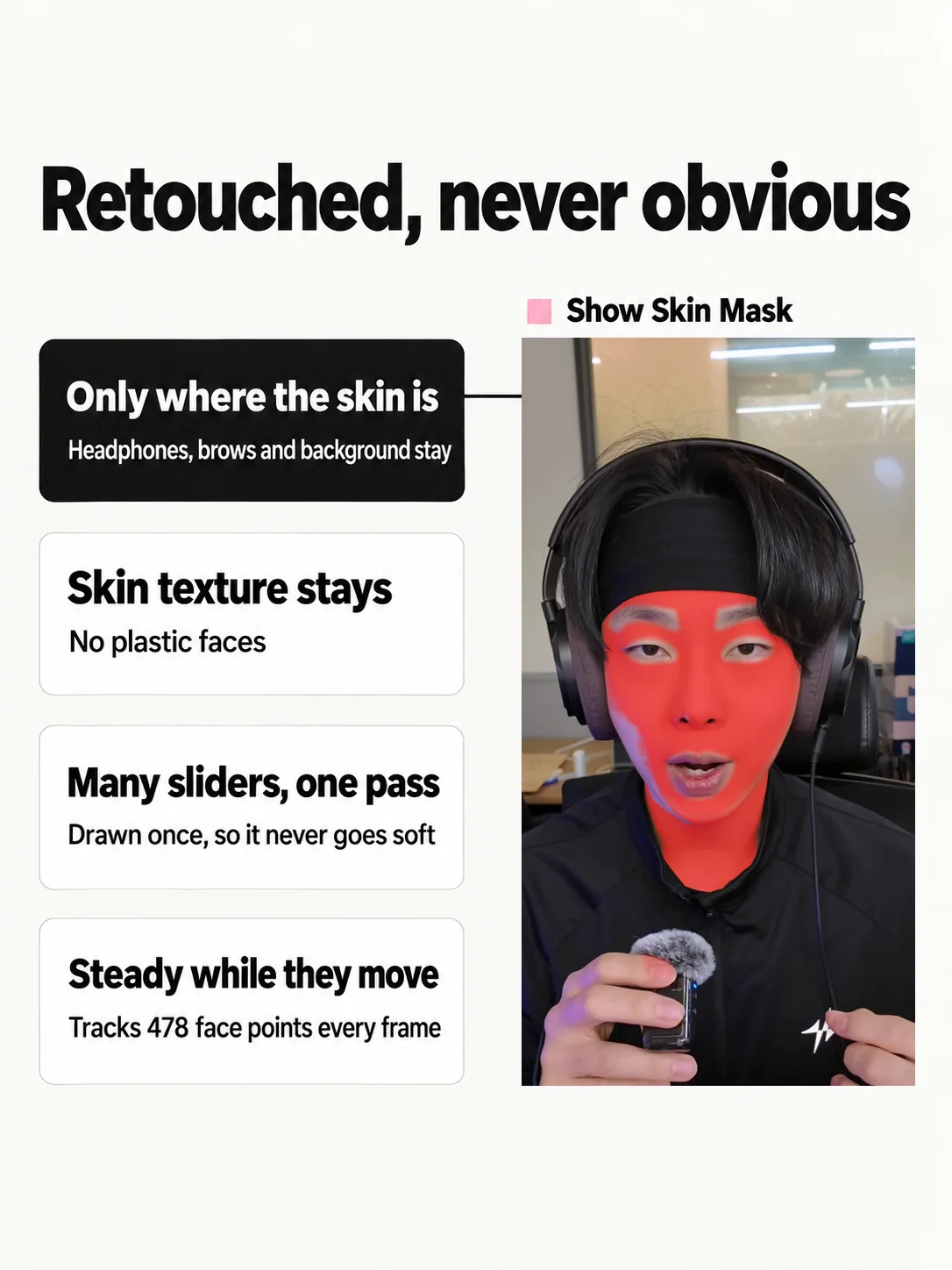
Only the skin gets retouched
You get Smooth Skin, Whitening (brightens the skin), Remove Blemish and 5 Skin Tone presets: Pink White, Cool White, Warm White, Wheat and Tan. Glam measures the skin color on each cheek separately and only retouches pixels that match it, so headphones, eyebrows and the background stay as they are while the skin gets smoother. Even when each side of the face is lit by a different color, neither half gets skipped. On a face at a three-quarter angle, the far cheek and the skin around the nose and mouth get retouched too, and the skin retouch carries on even when the face turns almost fully to the side. Skin texture is kept, so faces never turn into plastic. Reduce Face Wrinkles softens smile lines and wrinkles under the eyes and in the middle of the forehead, while keeping skin texture.
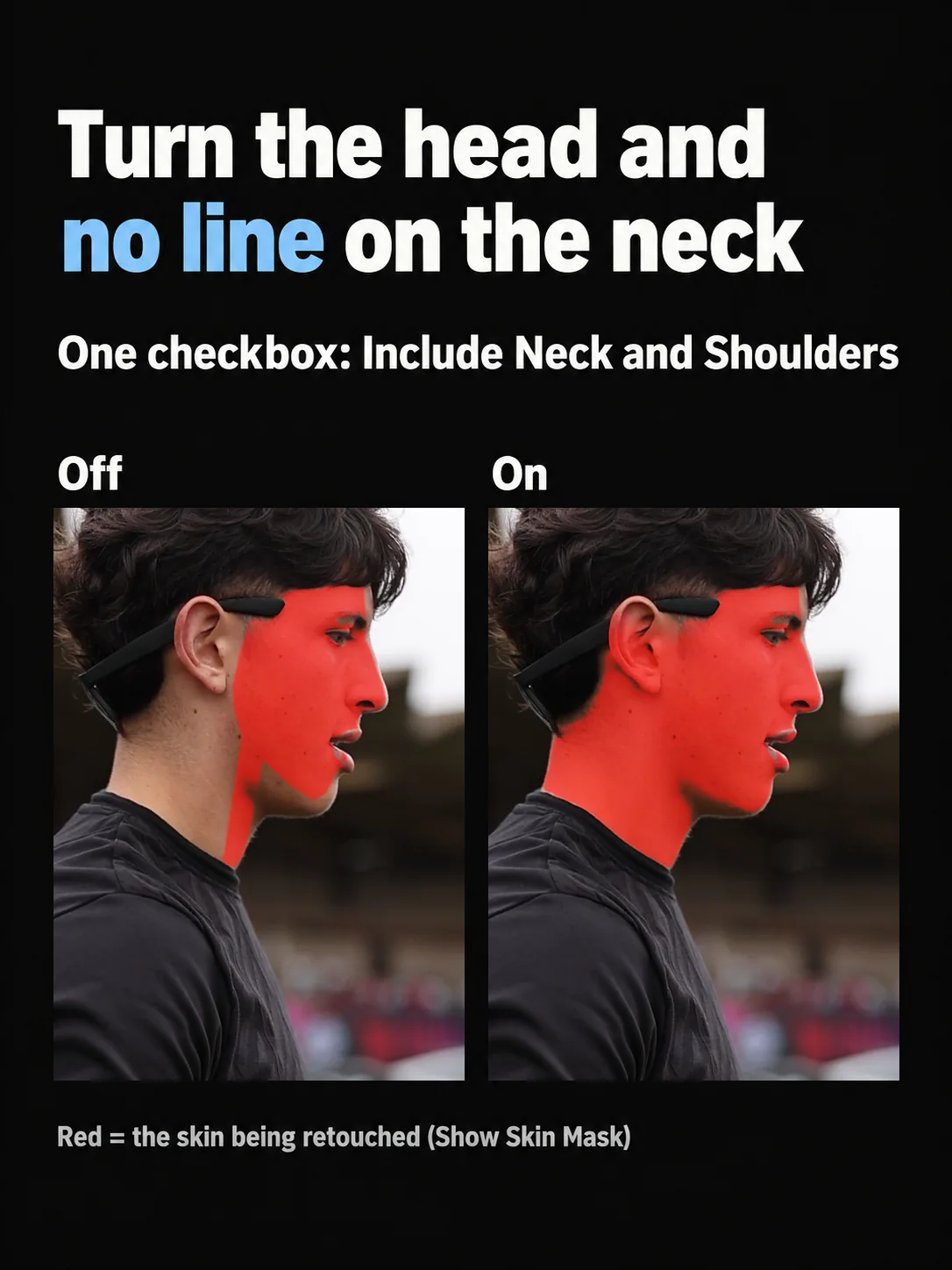
Turn on Show Skin Mask to see the retouched area in red (the first scene of the video). Thin bangs in bright light can come close to the skin color and get picked up too, so check them here. If the edge looks off, soften it with Mask Feather, or grow and shrink it with Mask Expand.
If the retouch stops at a line on the neck when the head turns, turn on Include Neck and Shoulders. It carries the retouch naturally to the side of the neck, ears, shoulders and arms, and leaves hair and clothes out. Playback may get a little slower with it on.
For close-ups of hands or a neck with no face in frame, or for arm and hand skin, turn on Skin Without Face. It finds skin by color, so beige fabric or furniture close to skin color can be retouched too. After turning it on, take a quick look with Show Skin Mask.
One slider for each part of the face
- Face: Slim Face · V-Line · Chin · Short Face · Small Face · Cheekbone · Temple
- Face Proportion: Midface Length · Philtrum · Forehead
- Eyes: Big Eyes · Bright Eyes · Dark Circles
- Gaze: Eye Contact · Iris Offset X · Iris Offset Y (eyes reading a script look at the lens)
- Apply To: Picked Person Only · All Except Picked (retouch or leave out one person among several)
- Eyebrows: Brow Height · Brow Thickness · Brow Distance
- Nose: Nose Width · Nose Size · Nose Bridge
- Mouth: Mouth Size · Upper Lip · Lower Lip · Mouth Corners · Mouth Width · Teeth Whitening
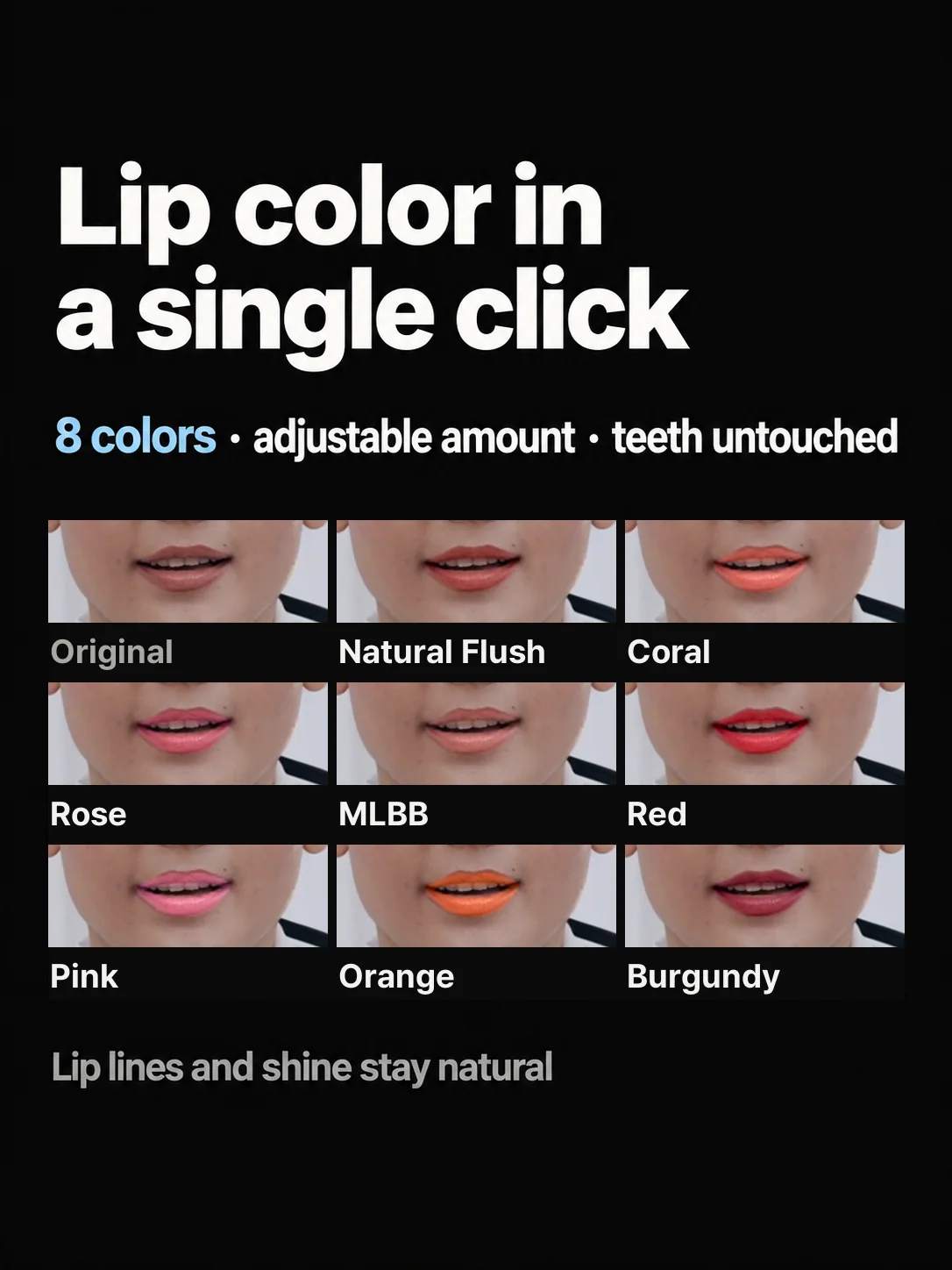
- Lip Color: Natural Flush · Coral · Rose · MLBB · Red · Pink · Orange · Burgundy (plus an amount slider)
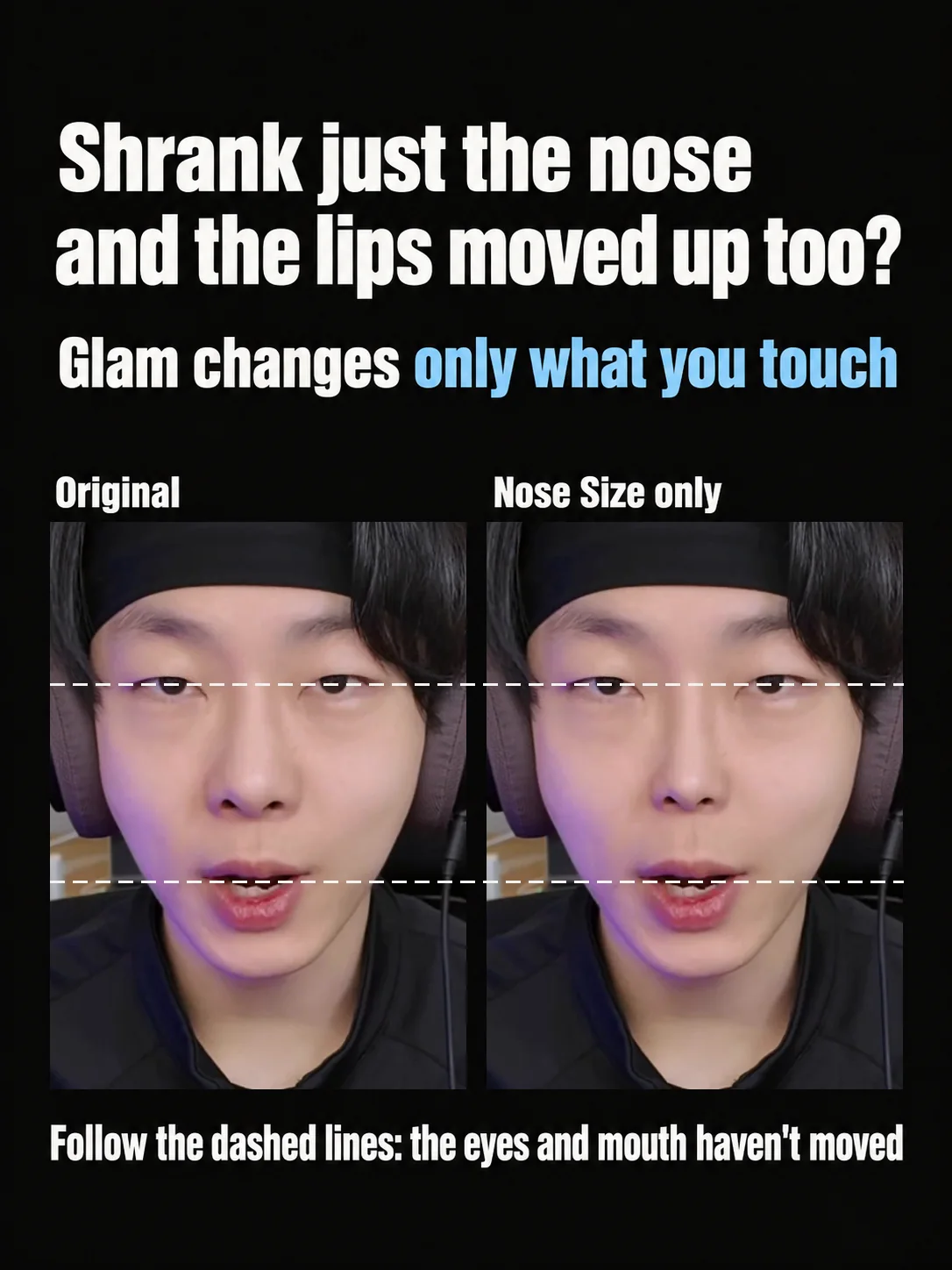
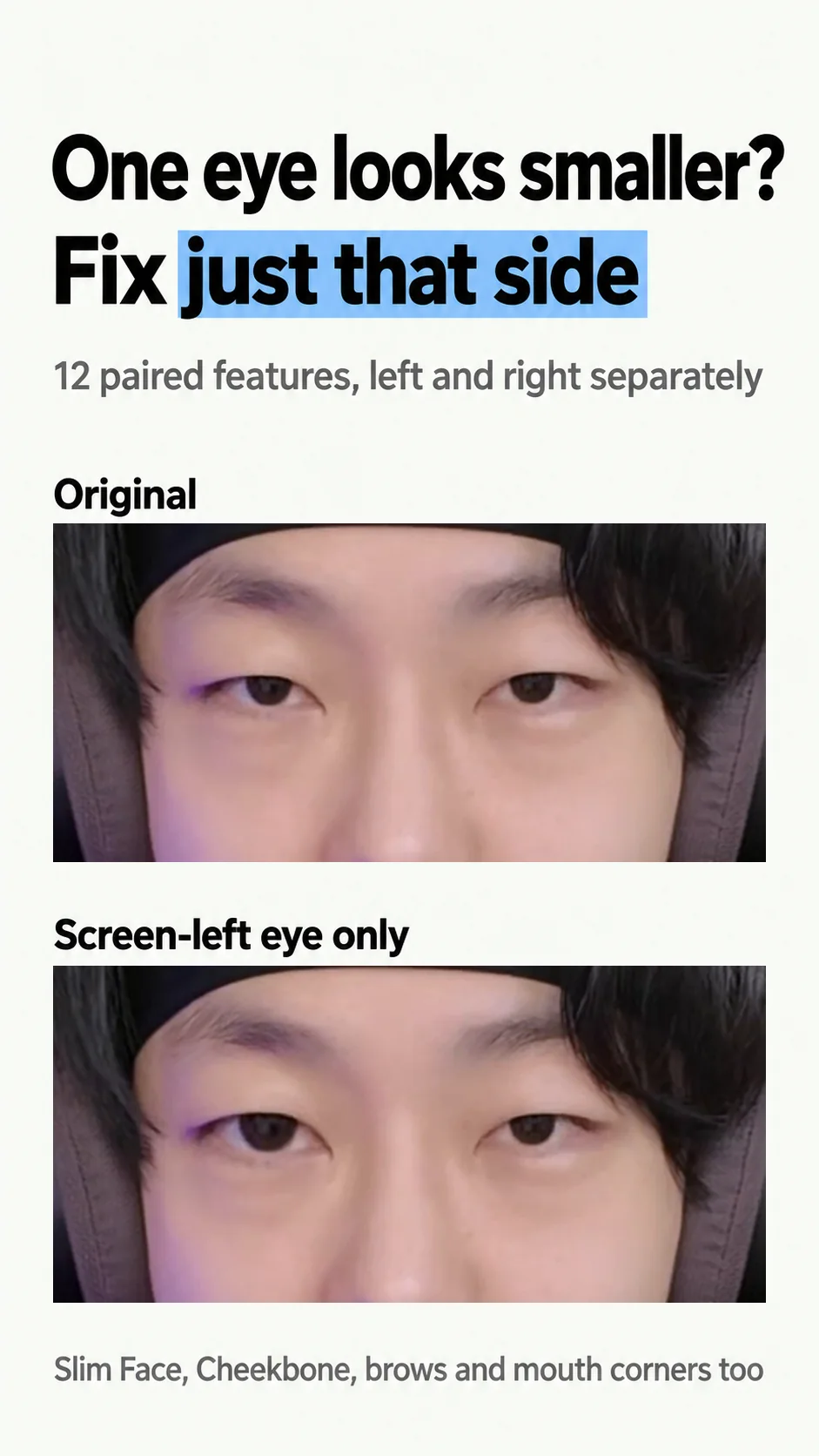
Add the 5 skin controls, Lip Color, Longer Legs, Eye Contact and 24 Left/Right sliders, and that's 57 adjustments in a single effect. The 12 paired features (Slim Face, V-Line, Cheekbone, Temple, Big Eyes, Bright Eyes, Brow Height, Brow Thickness, Brow Distance, Nose Width, Mouth Corner and Mouth Width) can be adjusted separately for the left and right side of the screen. If one eye looks smaller or one mouth corner droops, adjust just that side. Shrink the nose and the lips don't get pulled up with it. Enlarge the eyes and the brows stay put. Sliders like Nose Size, Nose Bridge, Mouth Size, Big Eyes and Slim Face change only their own feature and leave neighboring features (eyes, brows, nose, mouth) where they are. Small Face, Short Face and Midface Length change the face's proportions, so the features move with them. Shrink the forehead and only the hairline moves down; the top and shape of the head stay as they are. Lip Color keeps the lip lines and shine and leaves the teeth alone. However many you turn on, everything is calculated and drawn in one pass, so the image doesn't go soft the way stacked effects do. If door frames or wall lines behind the person bend while you reshape the face, turn on Protect Background to keep them straight. Every slider is a standard Premiere keyframe, so you can change the strength shot by shot.
Added in 1.1.3
- Lip Color: pick Natural Flush, Coral, Rose, MLBB, Red, Pink, Orange or Burgundy, then set how strong it is with the amount slider. Lip lines and shine stay, and the teeth are left alone
- Left/Right: Slim Face, V-Line, Cheekbone, Temple, Big Eyes, Bright Eyes, Brow Height, Brow Thickness, Brow Distance, Nose Width, Mouth Corner and Mouth Width can each be adjusted separately on the left and right of the screen, in three groups at the bottom of Effect Controls
- Include Neck and Shoulders: turn it on and the retouch no longer stops at a straight line on the neck when the head turns. It carries on to the side of the neck, the ears and the shoulders, and leaves hair and clothes out
- Forehead: make it smaller or bigger and only the hairline moves, while the top and shape of the head stay as they are
- Motion: face shaping keeps up when the head moves quickly, and if the face is briefly lost, the retouch fades out and back in
The current version is 1.2.3, which adds Apply To: with several people on screen, retouch only the person you pick, or everyone except them. 1.2.2 added Eye Contact: pick one frame where the person looks into the lens, and eyes reading a script look at the lens too. 1.2.1 fixed black dots that could appear on gray or white areas when Skin Tone was on. 1.2.0 added a Reduce Face Wrinkles slider that softens smile lines and wrinkles under the eyes and in the middle of the forehead. 1.1.9 ended the license transition period, so log in to memditor Album with your purchase email after you install. 1.1.8 added Upper Lip, Lower Lip and Dark Circles sliders, and 1.1.7 made timelines with many Glam clips export much faster and added a Philtrum slider. Earlier updates also moved Include Neck and Shoulders to your graphics card, cutting export time to under half on our test PCs. Already bought Glam? Updates are free for life, and memditor Album installs them with one click inside Premiere.
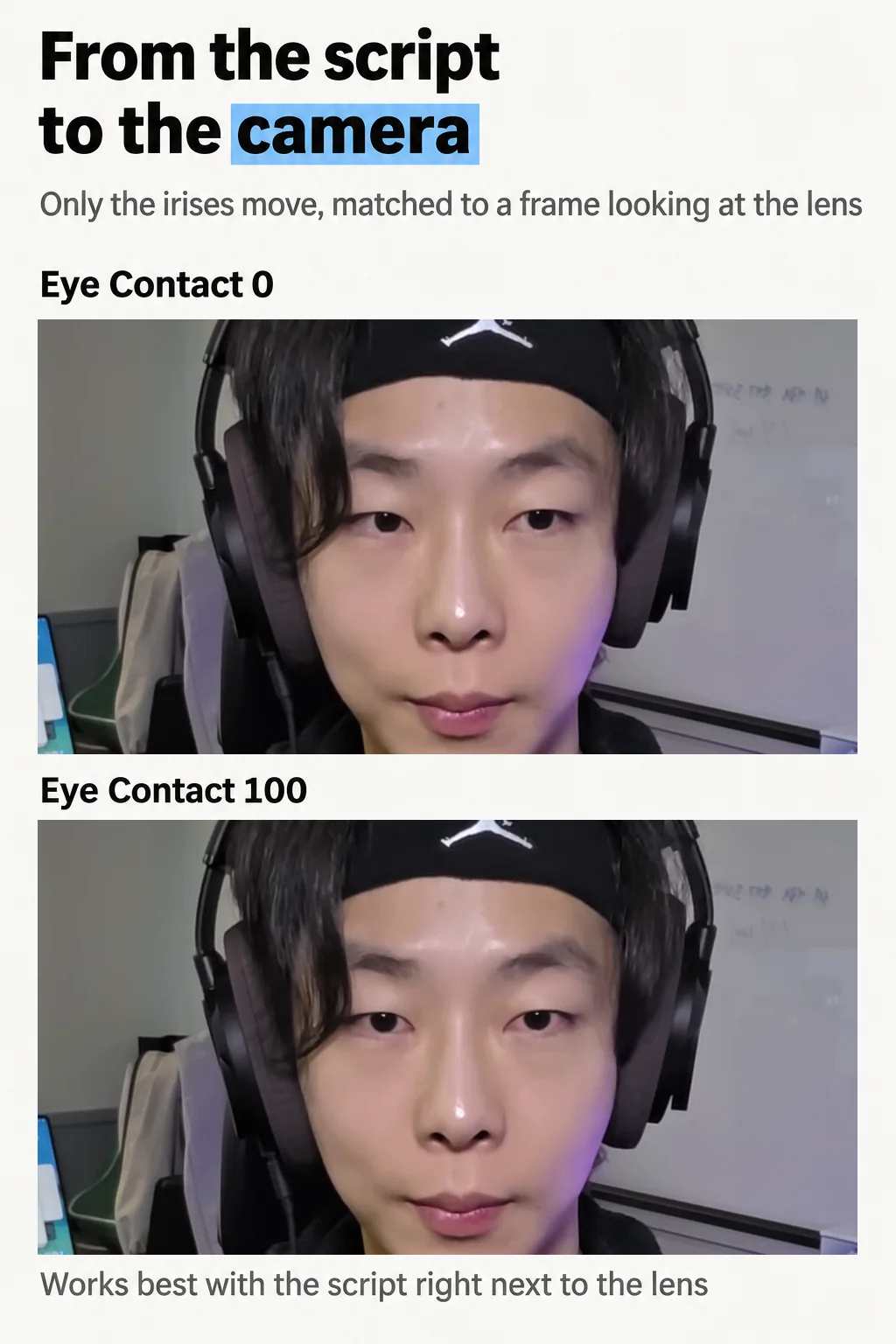
New in 1.2.2 · Eye Contact
Eyes that drift to a script next to the camera can look into the lens again. The video above is a real recording with the script beside the camera. Left is the original, right is Eye Contact at 100, the actual Glam result.
How to use
- Move the playhead to a frame where the person looks straight into the lens (eyes wide open works best)
- In the Gaze group, set Eye Contact to 100 and check Use This Frame as Reference. The box unchecks itself right away and this frame is saved as the reference
- Play it back, and if the irises look slightly off, adjust Iris Offset X and Iris Offset Y
- Where: Effect Controls > Glam > Gaze group (right below the Eyes group)
- Only the irises are carried over. Eyelids and blinks stay as they are in the video
- Works best when the script sits right next to or just below the lens, so only the eyes move a little
- Scenes where the person looks far down at a laptop screen or turns their head a lot may look unnatural. Lower Eye Contact there with keyframes
- Only the largest face on screen is changed, and you pick a reference frame for each clip
- If they wear glasses, reflections from the reference frame are carried over too, so pick a frame with little glare
Fix eye contact in YouTube, lecture and promo videos shot while reading a script, right inside Premiere Pro.
It stays on the face while they move
Glam finds 478 points on the face every frame and filters out tiny jitter. Tilting the head or talking doesn't shake the retouch loose. Even when the head moves quickly, Big Eyes and the other shaping sliders keep up instead of lagging and squashing the eyes. If a hand passes by or the head turns and the face is briefly lost, the retouch fades out and back in instead of cutting off. Faces lying sideways, strongly tilted or turned almost fully to the side are found too. Turn on Show Face Points to see the detected points and check the tracking at a glance.
It works on every face in the frame (or only the person you pick), and on vertical video, 4K and rotated phone footage.
Full-body shots get longer legs
Raise Longer Legs and the legs lengthen naturally. Glam uses the space below the feet and above the head first, and only lifts the waistline a little if it needs more, so feet are less likely to be pushed out of frame.
It works on full-body shots of one person with knees and ankles visible. On upper-body shots nothing changes, and that's expected.
Heads-up: when the person moves a lot, Longer Legs can noticeably distort the image. Please think of it as a bonus feature of Glam
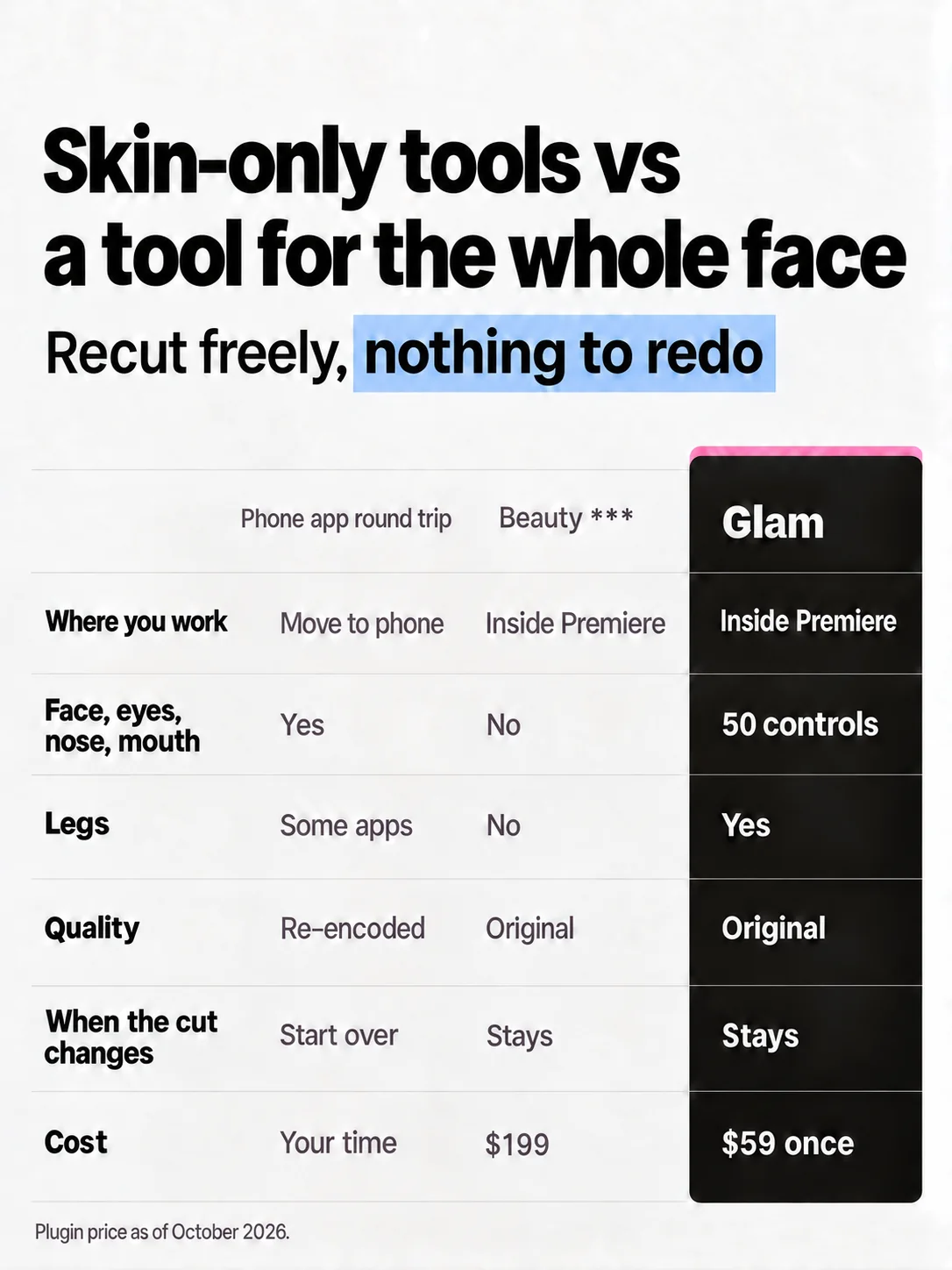
"Can't I just use a phone app?"
Sure, phone apps retouch faces well. But exporting, moving and re-importing every shot takes about 8 minutes. At 5 shots a day that's 13 hours a month, and when the cut changes you do the round trip again. Every re-encode also costs a bit of quality.
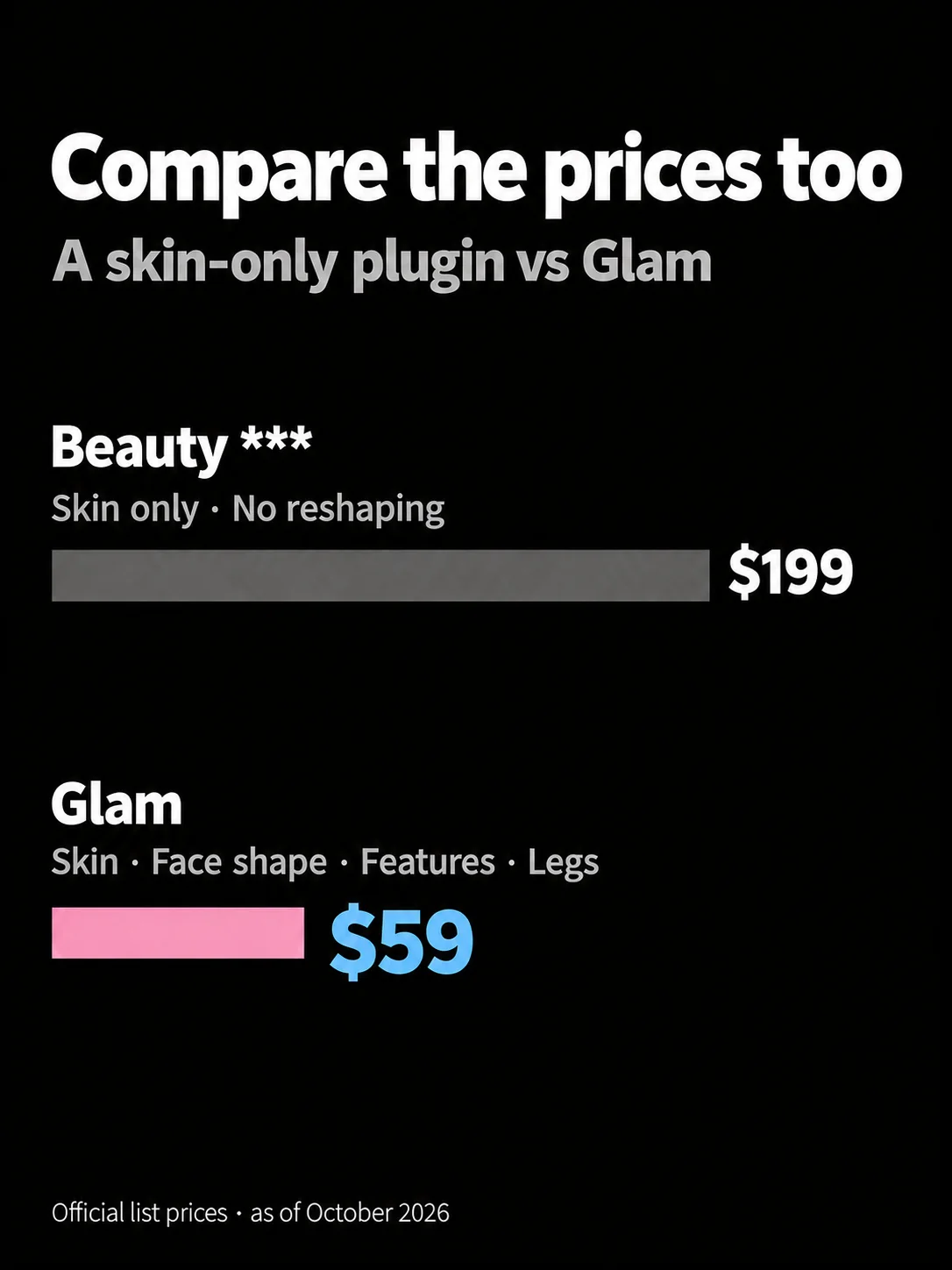
There are skin retouching plugins that run inside Premiere too. They focus mostly on skin, so face shape, eyes, nose, mouth and legs are out of reach. Beauty ***, for example, is $199 for skin retouching alone. Glam covers skin, face shape, features and legs for a one-time $59.
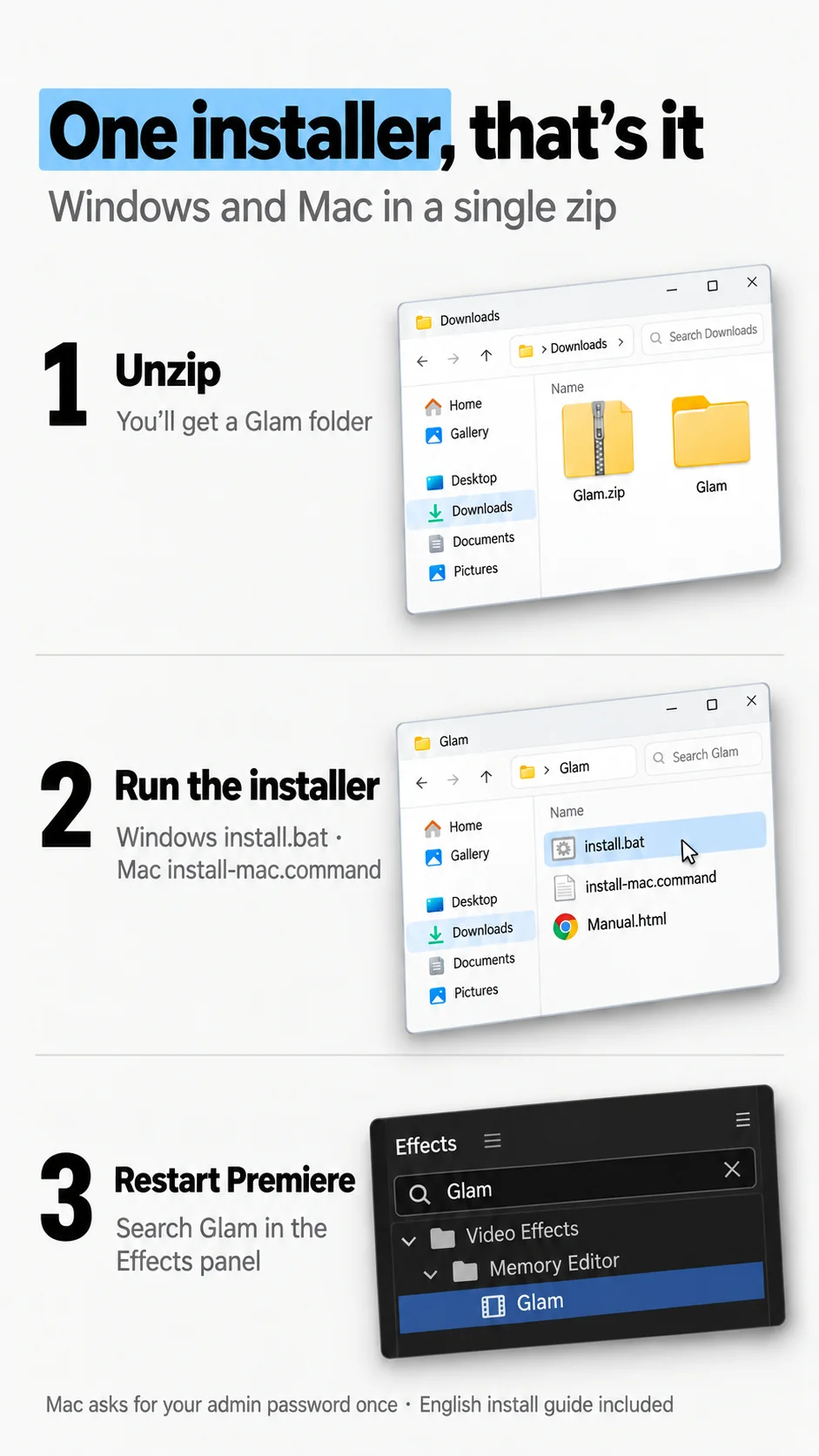
Install: unzip, run the installer, restart Premiere
- Unzip the whole file
- Run the installer
- Restart Premiere Pro
On Windows, double-click install.bat (click Yes once on the admin prompt). On Mac, drag install-mac.command into Terminal and press Enter (you'll type your admin password once). An English install guide and user manual are included, plus a manual install method (copy one folder) for PCs where security software blocks the installer.
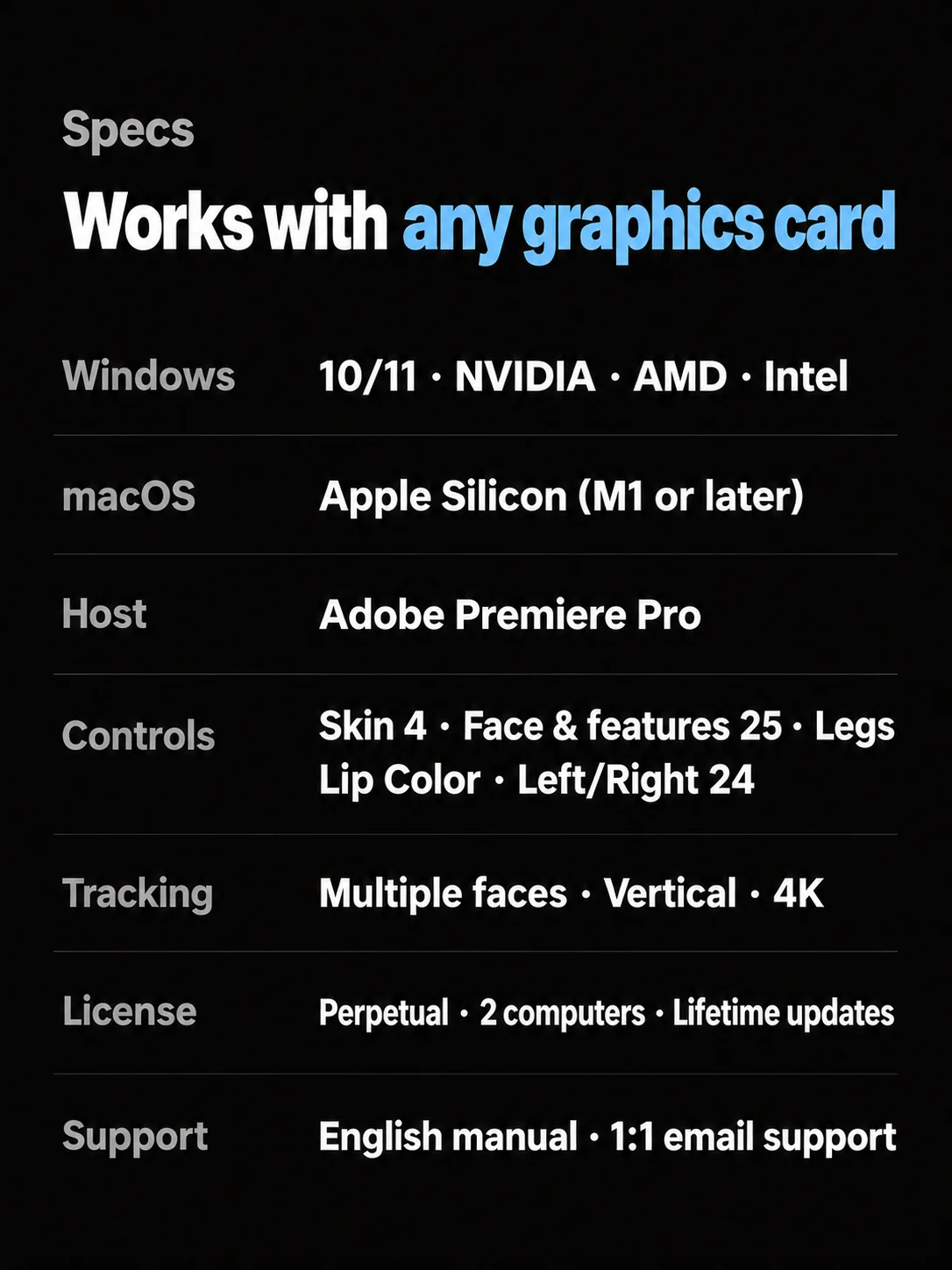
- Windows 10/11: NVIDIA, AMD and Intel graphics (real-time on the GPU)
- macOS: Apple Silicon Macs (M1 or later). Intel Macs are not supported
- Developed on Adobe Premiere Pro 2026 and tested on real Windows and Mac machines(on 2025 or earlier? Please email us before you buy)
- Where to find it: Effects panel → Video Effects → Memory Editor → Glam (or just search for Glam)
If anything goes wrong, run the diagnostic tool in the zip (Windows: Diagnose.bat · Mac: Diagnose-mac.command) and email us the Glam-Diagnostics.txt file it puts on your desktop to [email protected]. It lets us help you almost as if we were looking at your screen.
memditor Album: included free, log in once
The zip also has memditor Album, a free Premiere panel. Install it the same way, restart Premiere and log in with the email you bought with (we email you a 6-digit code). That confirms your license (it needs an internet connection), and from then on Album installs new Glam versions with one click. Without this login, a "GLAM TRIAL" watermark appears on the video.
Pricing
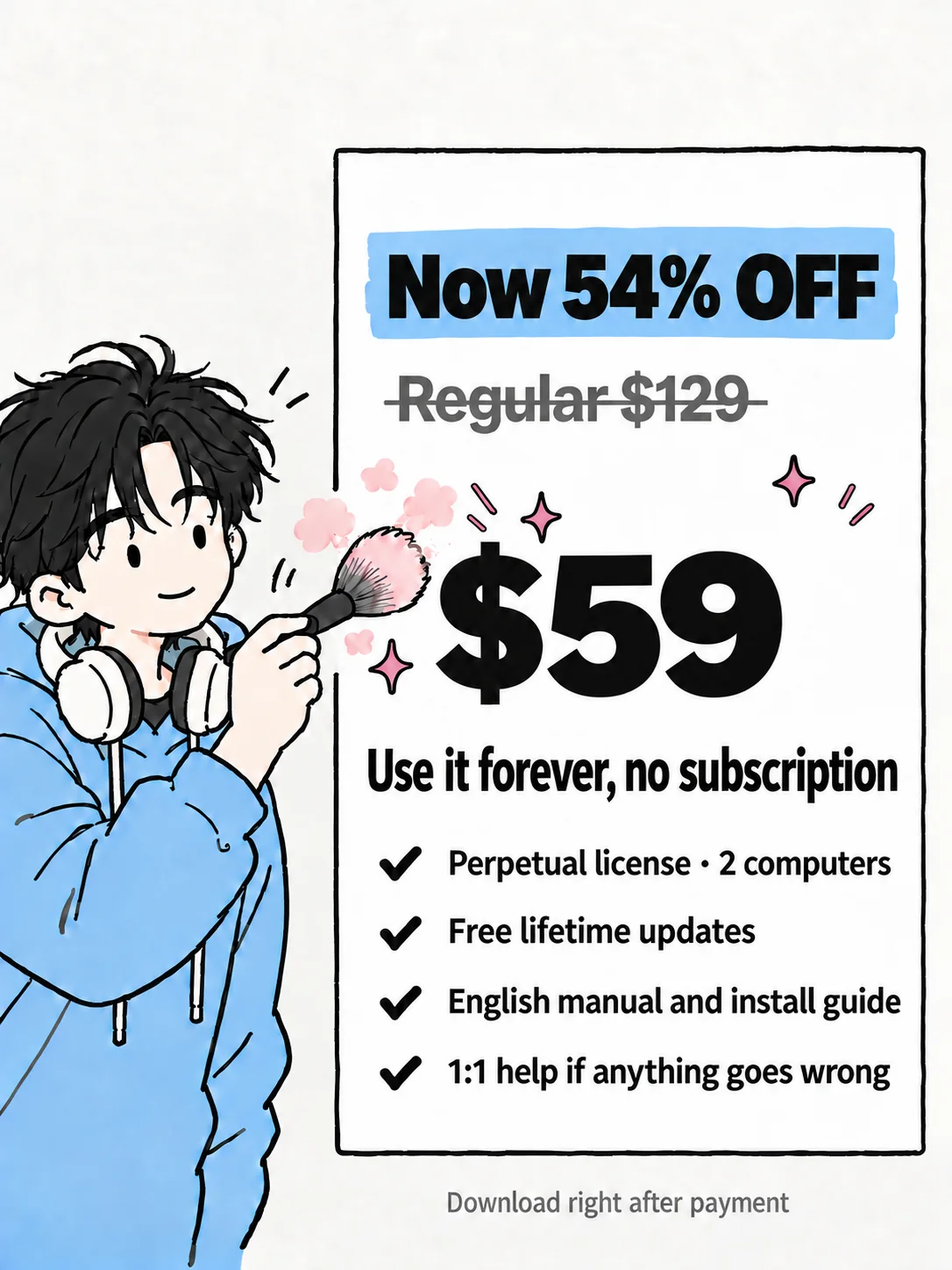
Glam is regularly $129, and right now it's $59. It's a perpetual license you pay for once, with no monthly subscription. Compare that with Beauty ***, a skin-only plugin at $199. One download covers both Windows and Mac.
FAQ
Does it work on any footage?
Skin retouching carries on from front views all the way to side profiles. In a near side profile, the face shape and feature sliders ease off naturally. Faces mostly covered by hands or masks, and very small faces, are harder to detect. Turn on Show Face Points to check right away.
Will it slow down my computer?
It renders on the graphics card (GPU), so most footage plays in real time. On lower-end systems the render bar may turn red, and without GPU acceleration it falls back to the CPU, which is slower.
What if there are several people?
By default, face retouching applies to every face in the frame. With Apply To you can retouch only the person you pick, or leave one person out. Longer Legs works only on a full-body shot of one person.
Can I change the strength from shot to shot?
Yes. Every slider is a standard Premiere keyframe.
What happens if I open the project on a computer without the plugin?
The project opens, but the retouch won't show. When you hand a project off, send the exported video.
Does it work on Mac?
Yes, on Apple Silicon Macs (M1 or later). Intel Macs are not supported (the installer will tell you and stop).
Which Premiere Pro versions?
Developed and tested on Premiere Pro 2026. If you use 2025 or earlier, please email us before buying.
My Premiere Pro isn't in English. Does that matter?
No. The controls appear in English in every language except Korean, where they appear in Korean.
Teeth Whitening doesn't seem to do anything.
It only works when the teeth are visible. No change with a closed mouth is normal.
Do I need to be online?
Only for the first login to memditor Album. After that, Glam works offline too. If it stays offline for more than 45 days, connect to the internet and restart Premiere once.
Can I get a refund?
Because this is a digital download, refunds aren't available once the file has been delivered. If anything doesn't work, we'll help you fix it 1:1 until it does.
How purchase works
- Download the file right after payment (no waiting for delivery)
- Perpetual license · 2 computers per person · free lifetime updates · 1:1 support for errors
- memditor Album included free: log in once to confirm your license, then update with one click
- Features have kept growing since launch (updates have already added Protect Background, Face Proportion, Skin Without Face, Lip Color, Include Neck and Shoulders and Left/Right)
- Questions? Email us anytime at [email protected]

Reviews from buyers
Only buyers can write reviews. Reviews are not hidden for being negative.